![buildwitt-logo-light.svg]](https://info.buildwitt.com/hubfs/2022%20-%20BuildWitt/buildwitt-logo-light.svg)
Good for:
- Toolbox talks and safety meetings
- Morning huddles or lunch and learns
Who can use it?
Group Watch is available to two types of users in Buildwitt Improve. The role decides which groups appear in the attendee list.
|
Role |
Attendee groups available |
Requirement |
|---|---|---|
|
Supervisor (User with direct reports) |
My Team, My Division, All Employees |
Regular user in improve, User is listed as the Supervisor on at least one employee profile |
|
Admin |
My Team, My Division, All Employees |
Admin user in improve |
The attendee groups work like this:
|
Group |
Who appears |
Available to |
|---|---|---|
|
My Team |
Everyone who has the user listed as their supervisor |
Supervisors and admins |
|
My Division |
The user and everyone else in the same division |
Supervisors and admins |
|
All Employees |
Every employee in the company |
Supervisors and admins |
Important: Attendee lists are built from supervisor and division assignments. A regular user who is not listed as the supervisor of any employee will not generate the group watch button.
Before you start
A little setup makes Group Watch easy to use for your supervisors on site. A Buildwitt account admin (someone who can edit employee information) can complete it quickly with assigning their users to supervisors & divisions. Don't stress if you feel like this is a challenge the Buildwitt customer success representative can help if needed.
Confirm that:
- Each employee lists the correct supervisor.
- Each employee is assigned to the correct division.
Remember if the supervisor is missing, employees will not see the group watch.
How to run a Group Watch session
The steps are the same for supervisors and admins. Only the attendee options in Step 5 differ.
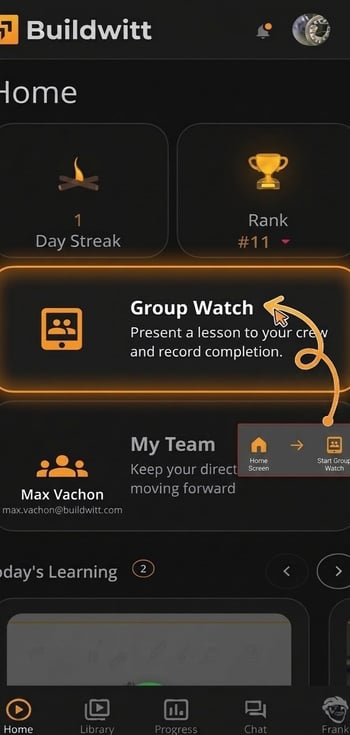
Step 1: Open Group Watch
From the device’s home screen, tap the Group Watch button.
Step 2: Choose a course
Find a course the same way as in the library:
- Search for a topic (for example, “staking”)
- Browse the carousels on the page
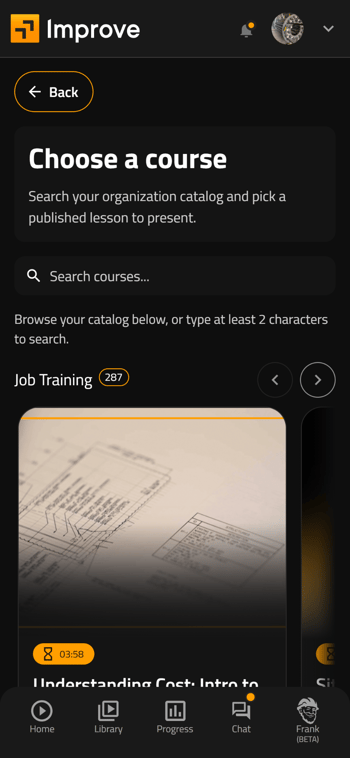
Tap the course of interest.
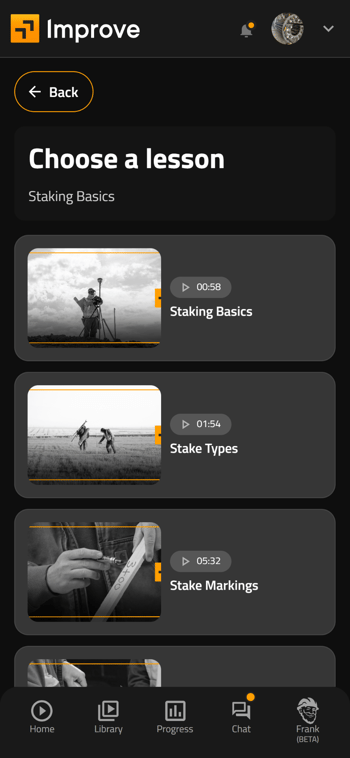
Step 3: Pick a lesson
The list of lessons in that course appears. Tap the lesson to play for the group. If the wrong lesson was selected, go back and choose a different one.
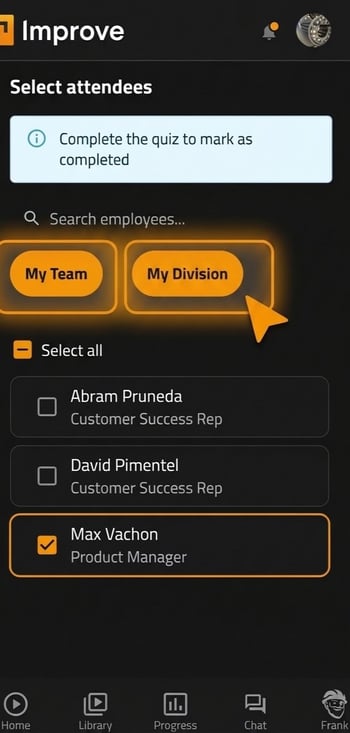
Step 4: Select attendees
Scroll down and you can Select Attendees area. This is where you would select who is present. The available groups (My Team & Divisions, All Employees) depend on the role, as described in the next two sections.
Step 5: Play the lesson
Play the video for the group. It works just like any other lesson in the system.
Step 6: Complete the quiz (if there is one)
If the lesson includes a quiz, complete it after the video, the same way as for any other lesson.
Step 7: Mark the lesson complete
Mark the lesson as complete. The system then gives each selected attendee a completion record and watch time credit for that lesson.
Final Overview on Roles that enable Group Watch
Supervisors: selecting attendees
A regular user who has employees reporting to them (employees whose profiles list that user as their supervisor) will have two options in Select Attendees:
- My Team shows the direct reports. Select everyone, or only the people present.
- My Division shows everyone in their division.. Select all of them, or choose individuals.
- All Employees: everyone in the company (admin only)
Example: a morning toolbox talk. A crew supervisor opens Group Watch, searches for “staking,” and picks a lesson. At the morning meeting, the supervisor plays the video, selects the crew members on site from My Team, completes the quiz, and marks the lesson complete. Each crew member receives credit.
Admins: selecting attendees
Admins see the same two options as supervisors, plus one more in Select Attendees:
- My Team: employees who have the admin listed as their supervisor
- My Division: employees who share the admin’s division
- All Employees: everyone in the company (admin only)
Example: onboarding new hires. Hank is an office administrator. He gathers new employees around one device and plays their onboarding videos. When the videos finish, Hank selects All Employees, chooses the new hires who were in the room, and taps Mark Complete. Each new hire is credited with watching the videos.
Tip: All Employees is a long list, so double-check that only the people who attended are selected before marking the lesson complete.
Quick reference
- Tap Group Watch on the home screen
- Search a course
- Choose a lesson
- Select attendees (My Team or My Division; admins also see All Employees)
- Play the video
- Complete the quiz, if there is one
- Mark the lesson complete
Troubleshooting and FAQs
My Team does not appear. My Team only appears when other employees have the user listed as their supervisor. A Buildwitt account admin can update the supervisor on each employee’s profile.
The right people are not showing up in My Team. Only employees whose profiles list the user as their supervisor appear. If someone is missing, an admin should check that employee’s supervisor setting.
The right people are not showing up in My Division. My Division shows the division the user belongs to. If someone is missing, an admin should confirm that employee is assigned to the same division.
Does a user need to be an admin to use Group Watch? No. Supervisors can use Group Watch with My Team and My Division. Admins also get All Employees.
Who gets credit for the lesson? Only the people selected as attendees. Each receives a completion record and watch time credit once the lesson is marked complete.
Can Group Watch be used on a phone or tablet? Yes. Group Watch is available from the home screen on mobile devices, so it can run on site without a computer.
Need more help?
Contact a company admin or the Buildwitt customer success representative.