![buildwitt-logo-light.svg]](https://info.buildwitt.com/hubfs/2022%20-%20BuildWitt/buildwitt-logo-light.svg)
How to Hide a Course
- Log in to Improve at train.buildwitt.com.
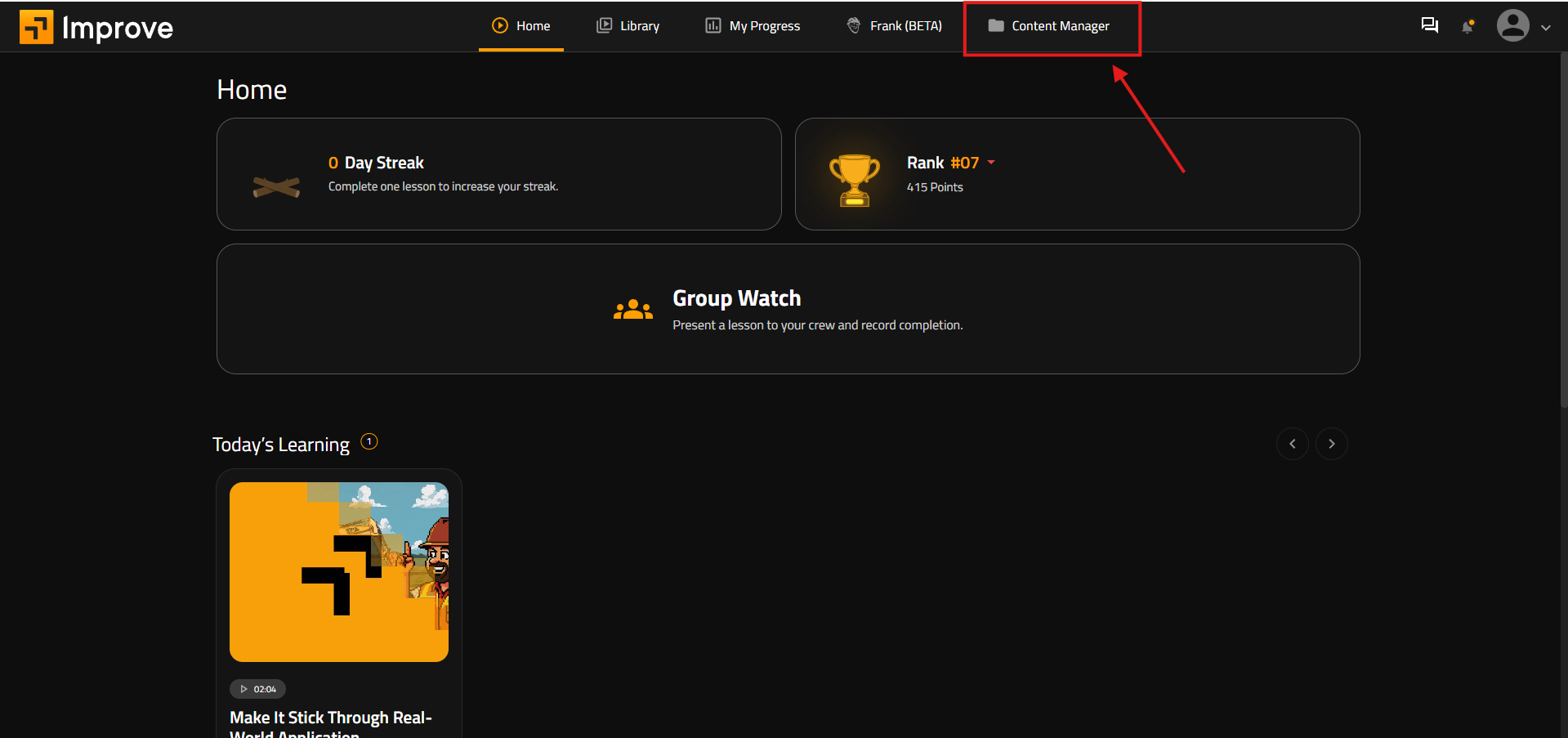
- From the top navigation bar, select Content Manager.
- From the left-hand menu, select Courses.
- Use the Search or Filter options to narrow down the course library and locate the course you want to hide.
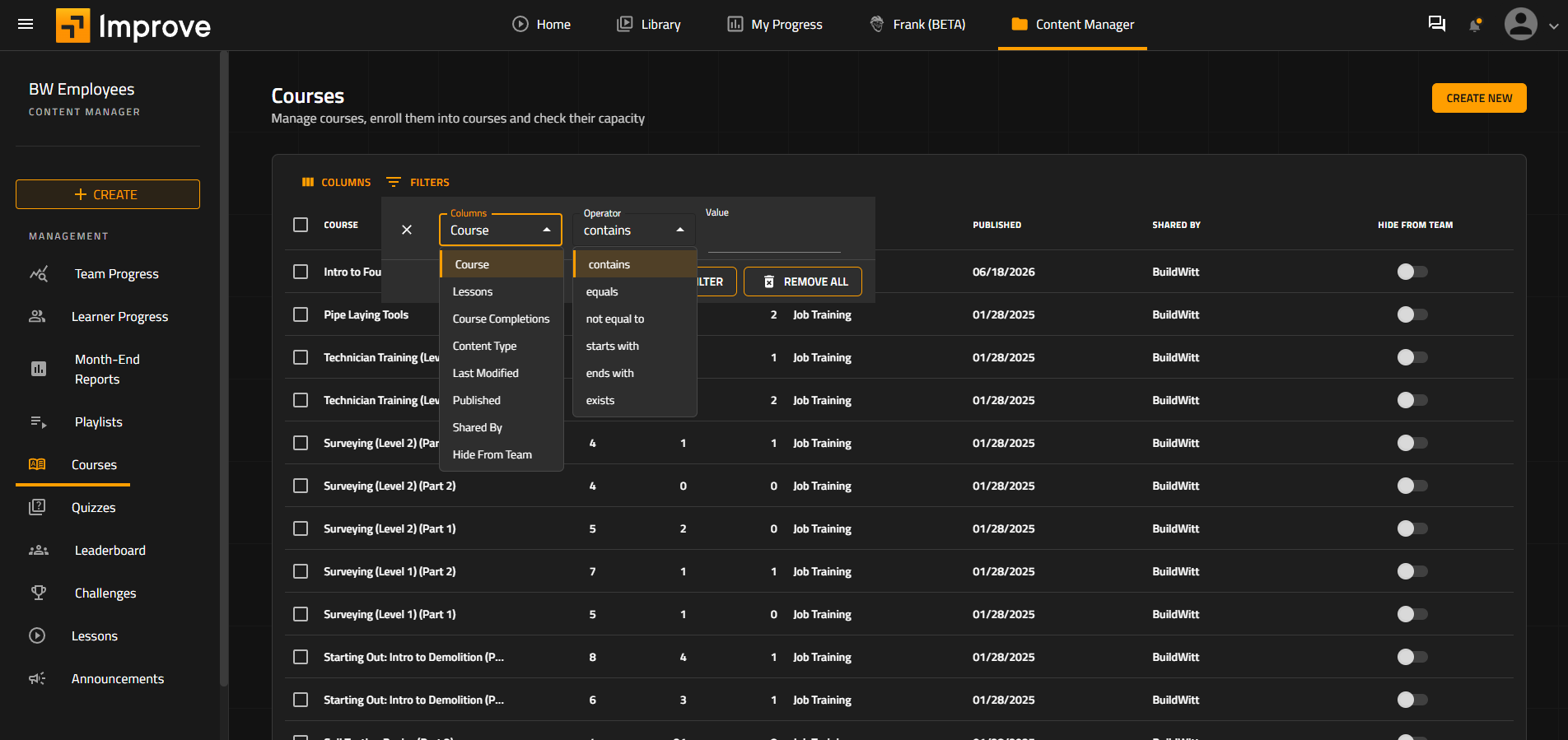
- Once you locate the course, find the Hide from Team column on the far right.
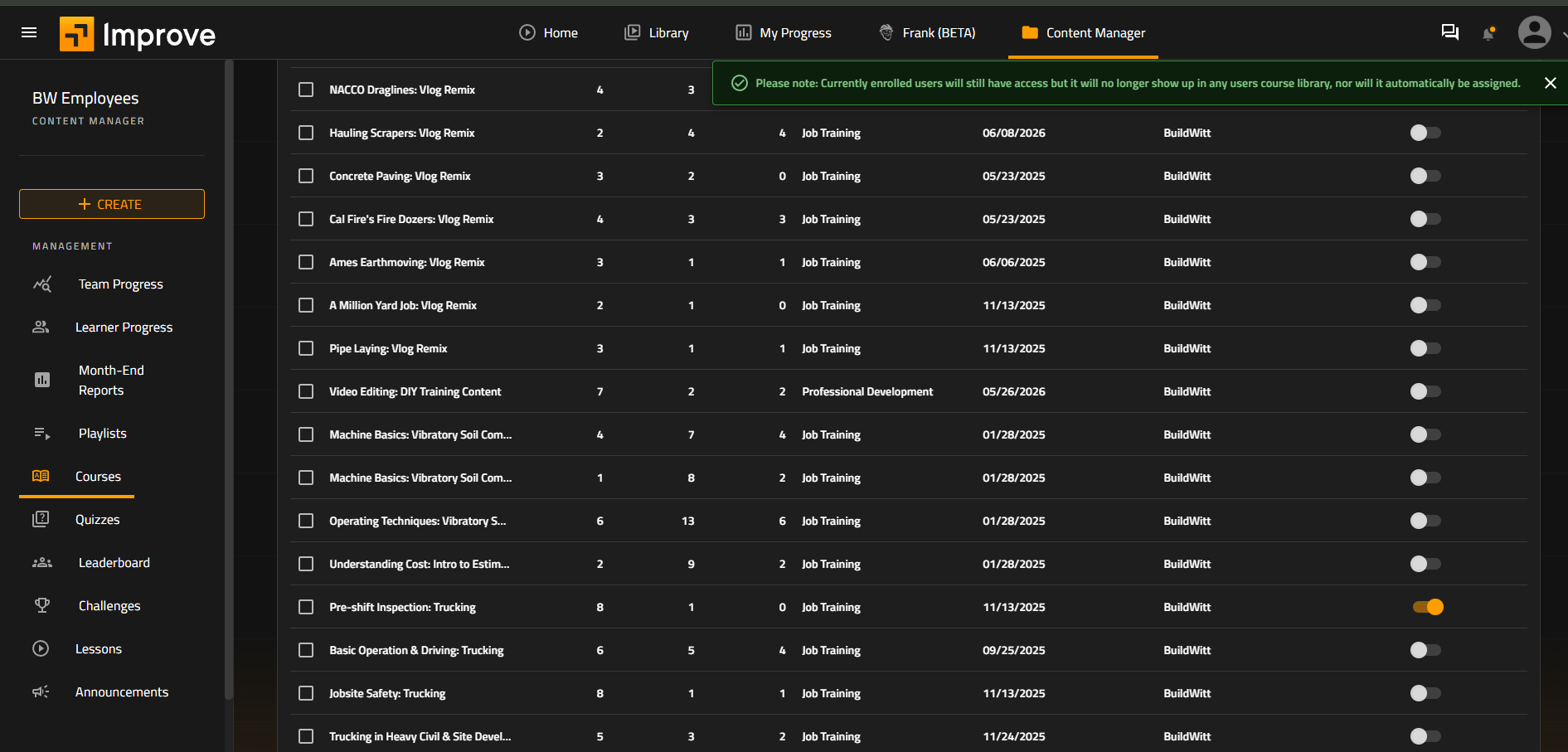
- Toggle Hide from Team on.
- A toast notification will confirm that the course was successfully hidden. The toggle will also turn orange to indicate that the course is hidden.
What Happens When a Course Is Hidden?
When a course is hidden:
- It will no longer appear in users' Library
- It will no longer be automatically assigned to users.
- Users who are already enrolled in the course will still have access to it.
- Hidden courses can still be admin assigned
Note: Hiding a course does not remove it from users who are already enrolled.
Making a Hidden Course Visible Again
At any time, an admin can make a hidden course visible again by returning to the Hide from Team column and toggling the setting off. The course will then be available in the visible course list again.